3 StreamingChurch.tv Admin Features You’re Probably Underutilizing

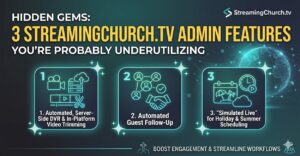
If you haven’t dug deep into your NEW StreamingChurch.tv admin panel lately, you are likely paying for third-party tools or doing manual work that your streaming backend can handle automatically. If you have bookmarked the old admin control panel login, you’ll need to change that. Go to StreamingChurch.tv and click on the login link in the upper right of the website to access the new admin control panel.
Here are four powerful administrative features hidden in your StreamingChurch.tv dashboard that you should start using this week.
1. Automated, Server-Side DVR & In-Platform Video Trimming
Most admins are all too familiar with the Sunday afternoon scramble. Service ends, you download a massive local recording, throw it into an editing suite just to chop off the 10-minute pre-roll countdown and closing announcements, and then wait hours for it to re-render and upload to your media vault.
If you are on a Premium or Platinum plan, you can completely skip this headache:
- Set It and Forget It: The platform features automatic server-side DVR recording. It captures the live stream directly on the server.
- Precision Control: You can dynamically trigger the DVR to start and stop at exact moments via the admin panel (like starting exactly when the sermon begins).
- The Inline Trimmer: If you miss the mark, you don’t need editing software. The admin dashboard features a built-in online video editor with simple sliders and a video scrubber. Trim the pre-roll right in your browser, click save, and the polished video updates automatically in your Media Vault.
2. Automated Guest Follow-Up Workflows
One of the biggest leaks in digital ministry is tracking the “digital first-time visitor.” If someone watches on Facebook or YouTube, you rarely get a name or email. On your StreamingChurch.tv web campus, you can actively capture and shepherd these individuals.
When a new viewer joins, the platform places a pin on the Automated Attendee Map and populates their profile in the “Who’s Attending” area. But the real magic happens after the stream ends:
- Automated Drip Emails: In the admin panel under Follow Up Settings, you can configure custom automated email workflows.
- Tailored Tracking: You can design specific messages to go out automatically to a first-time attendee, a second-time returner, or even an automated check-in message for a “non-returner” who hasn’t logged on in a few weeks.
3. “Simulated Live” for Holiday & Summer Scheduling
Summer vacations, volunteer shortages, and holiday weekends can make pulling off a flawless, multi-camera live production incredibly stressful.
The Simulated Live feature in your admin panel lets you maintain an interactive, community-driven online service without the live-production pressure:
- How it works: You upload a fully produced, pre-recorded service video directly to the admin dashboard and schedule it for a specific Sunday morning time slot.
- The Experience: To your viewers, the service broadcasts exactly as if it were live—complete with the countdown timer, automated start, and full interactive layout.
- The Benefit: Because your tech team isn’t stuck behind cameras or managing an encoder switchboard on Sunday morning, your staff and volunteers can log in from anywhere and completely focus on the chat room, greeting newcomers, and praying with people.
The Takeaway: Take 30 minutes this week to log into your NEW StreamingChurch.tv admin control panel and look past the basic encoder settings. Activating just one of these features—whether it’s the automated follow-up emails or the Trim Sermon Feature—can save your team hours of work and completely transform how your online church community connects.
Questions? Reach out to us anytime, go to StreamingChurch.tv and click on the chat icon